Creating payment links from the Merchant Dashboard
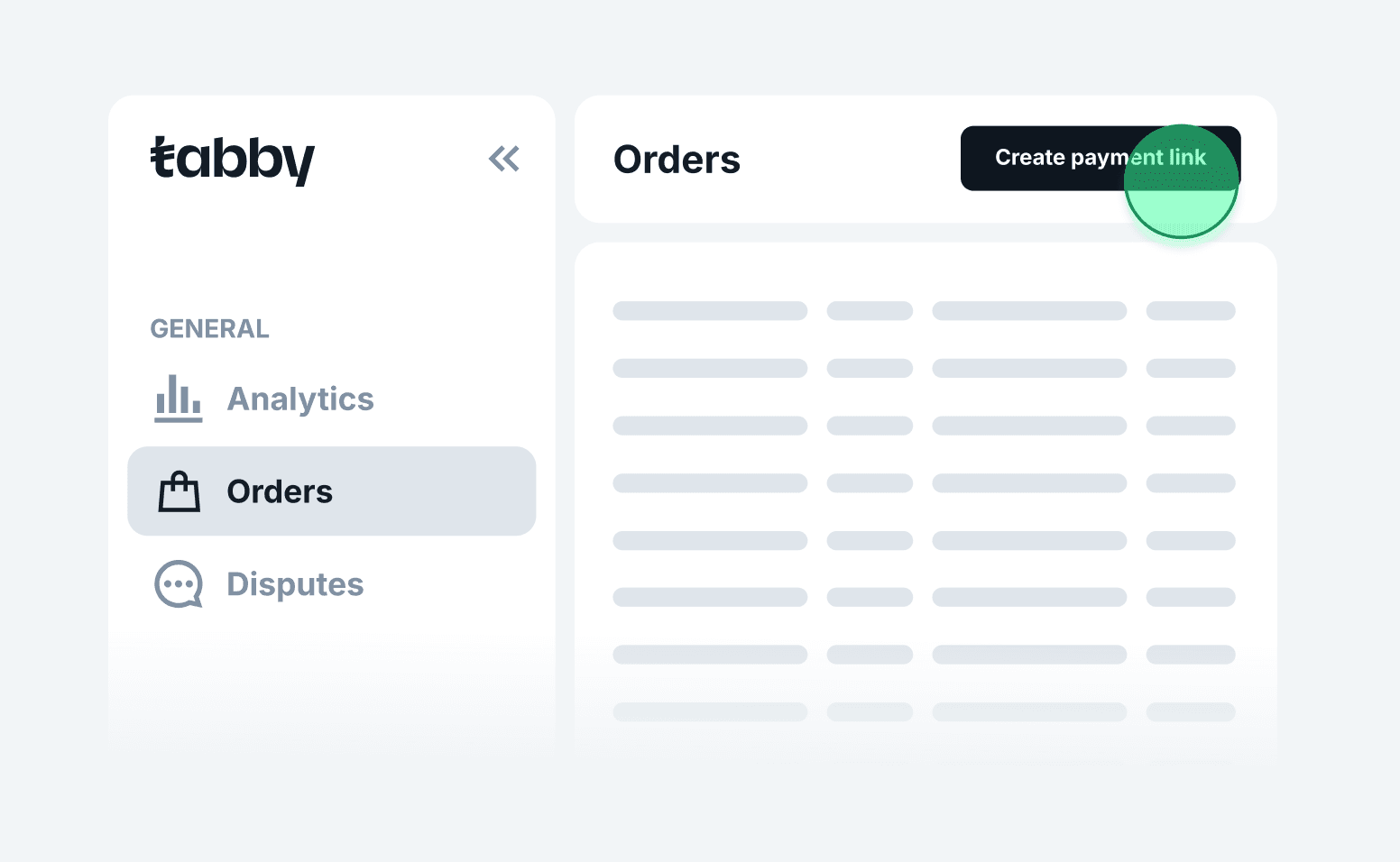
1. Go to the Orders page in your Merchant Dashboard
2. Click 'Create payment link'
Located at the top-right corner of the Orders page
2. Click 'Create payment link'
Located at the top-right corner of the Orders page
3. Fill in order details
- Store: Select your store name from the dropdown
- Total amount: Input the total purchase amount
- Order number (optional): Leave blank if you want it autogenerated
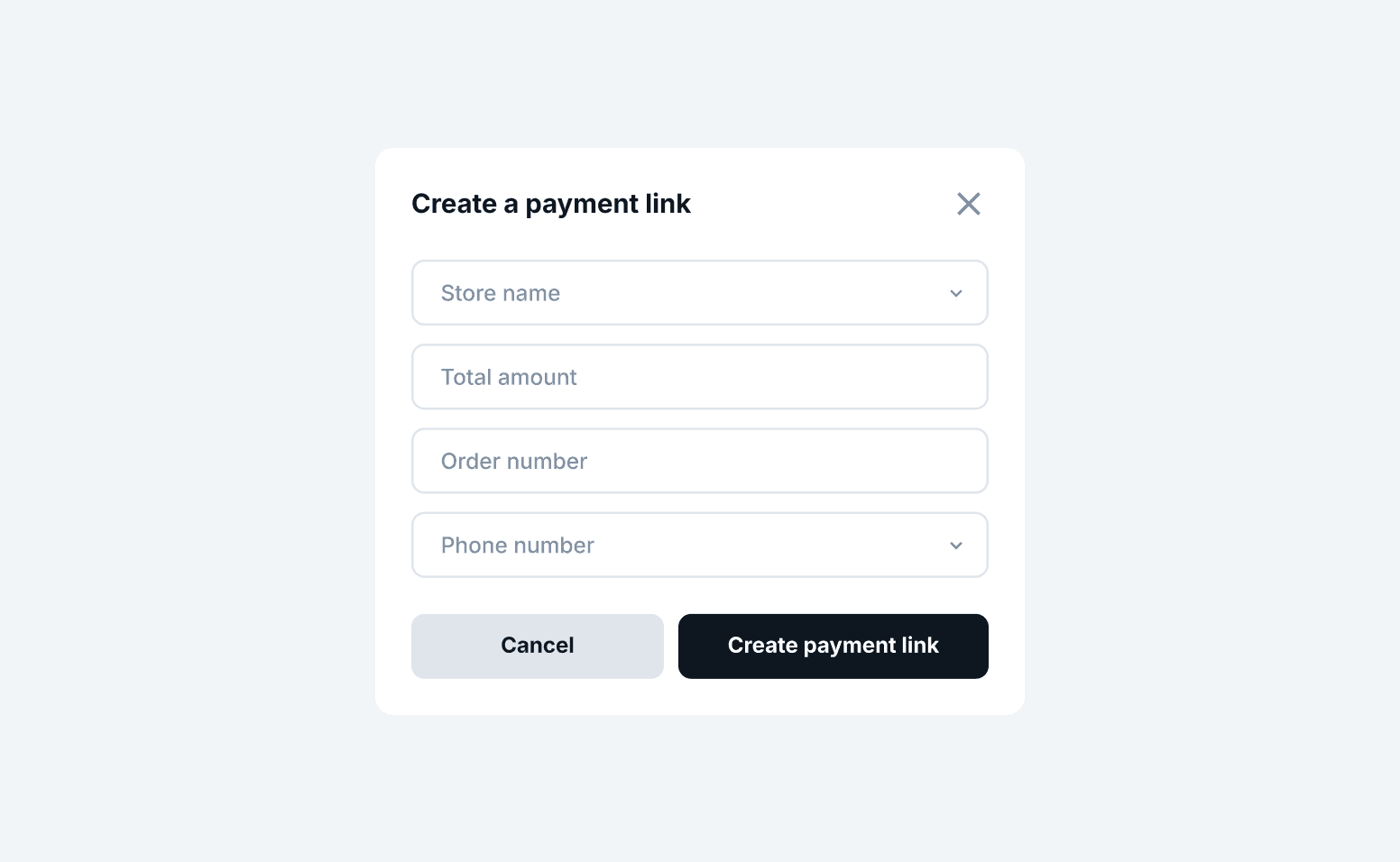
4. Enter customer details
- Phone number: Required to send the payment link via SMS
- Customer name (optional)
- Email (optional): If provided, the shopper will also receive the link via email
5. Send the link
Click on Create and Send Link. The shopper will receive a message instantly. Once payment is complete, the order will update to Captured status.
Click on Create and Send Link. The shopper will receive a message instantly. Once payment is complete, the order will update to Captured status.
Important: Adding extra fees for using Tabby or offering shoppers cash instead of goods/services is prohibited and may result in penalties.
After payment link is sent
- The link will appear in your Orders list
- Order status will update to Captured once paid
- You can copy and resend the link manually if needed